How to Calibrate a Golf Simulator
A step-by-step guide to calibrating a golf simulator: distance setup, ball and tee position, screen alignment, club data tuning, and a simple test-and-adjust loop.
Calibrating a golf simulator means making the numbers on screen match reality, so a shot that flies 250 yards in the software would fly 250 yards on the course. Good calibration comes down to five things: distance setup, ball and tee position, alignment to the screen, club data tuning, and a repeatable test-and-adjust loop. Do them in order, change one variable at a time, and re-test after each change. Below is the full process, plus how to handle a unit that still reads wrong after a careful setup.
Calibration gear
The three tools that make calibration repeatable: an accurate monitor, alignment sticks to square it, and marked balls for true spin.
-
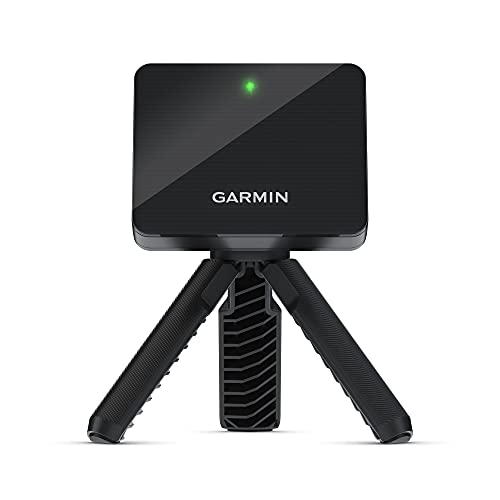 Launch monitor Garmin Approach R10 Portable Golf Launch Monitor
A radar unit that holds its calibration well in a home bay once it is leveled and placed at the spec distance, the heart of an accurate setup.
-
 Alignment aid BIRDIEBLAST Collapsible Golf Alignment Sticks
Set them on your true ball-to-target line to square the monitor and check that straight shots fly straight on screen during alignment.
-
 Marked balls XQK XQK Golf Ball Marking Template
Marks your balls with the alignment dots a camera unit needs, so spin reads true instead of jumping while you dial in club data.
Prices update on Amazon and change often. As an Amazon Associate we earn from qualifying purchases at no extra cost to you.
Before you start
Gather a few balls of one known model, a club you hit consistently, a tape measure, and a small level. Know roughly what your real carry distances are with at least two clubs, for example a wedge and a mid iron, because those are your reference points. If you are not sure of your numbers, use conservative averages for your swing speed. Calibration is only as good as the truth you compare against, so honest reference distances matter more than any setting.
Step 1: Distance calibration
Distance accuracy starts with physical placement. Set the launch monitor at the exact distance from the ball specified in your manual, radar units sit behind the ball, photometric units sit beside it, and confirm the unit is level using a small level on its top surface. A tilted unit reads launch angle wrong, which corrupts carry. Next, open the software and enter your normalized altitude and temperature. A wrong altitude setting alone can make every carry read long or short. Once placement and environment are set, you are ready to test against known yardages.
Step 2: Ball and tee position
Every unit has a capture zone, a small marked area where the ball must sit. Tee or place the ball there, then mark that exact spot on your mat with a strip of tape so you can return to it every shot. Inconsistent ball position is one of the most common reasons calibration seems to fail, because the unit reads launch angle and direction differently when the ball drifts. Lock the position down first, and the rest of the process becomes far more reliable.
Step 3: Alignment to the screen
Alignment makes a square clubface produce a centered shot on screen. Square the unit to your true ball-to-target line, not to the wall or the screen frame, since the two are rarely identical. Hit a handful of deliberately straight shots and watch the start line in the software. If straight shots consistently start left or right, nudge the unit's alignment or adjust the software offset until centered. Re-center any time you switch between right and left-handed play, because the capture geometry flips.
Step 4: Club data tuning
With distance and alignment set, verify the finer numbers. Use a marked ball so photometric units read spin accurately, then check that spin, launch angle, and club path land in a sensible range for your swing speed. Resist the urge to tune the data so your drives fly farther than they really do. The point of a simulator is practice that transfers to the course, and inflated numbers defeat that. If a club reads oddly, re-confirm ball position and unit level before changing software values.
Step 5: The test-and-adjust loop
Calibration is iterative. Hit a small group of shots, compare to your known distances, make one change, then re-test. This loop is how you converge on accurate numbers without chasing your tail.
| What you observe | Likely cause | Single adjustment |
|---|---|---|
| All clubs carry too long | Altitude set too high or unit reading extra speed | Correct altitude, re-test |
| All clubs carry too short | Unit not level or wrong distance | Re-level and re-measure placement |
| Straight shots start offline | Alignment to target line | Re-square unit, re-test |
| Spin reads zero or jumps | Unmarked ball on photometric unit | Rotate a marked ball into view |
| Numbers vary wildly shot to shot | Ball position drifting | Tape the spot, hit from it every time |
Change only one thing per loop. If you adjust altitude and alignment at once and the numbers improve, you will not know which fix mattered, and you cannot reproduce it next session.
Lock it in and recheck regularly
Once your wedge and mid iron match your real distances and straight shots fly straight on screen, your simulator is calibrated. Note your final settings so you can restore them after a firmware update, which often resets environment values. Build a quick level, distance, and ball-position check into your warmup, and run a fuller calibration monthly or whenever you move the unit, change mats, or swap balls.
If the data is still off after a careful calibration, the problem may be upstream of settings, things like lighting, placement, or sight lines. Work through our guide to a simulator not reading shots to rule those out. And if your current unit simply struggles to read accurately in your space, our roundup of the best launch monitors explains which radar and camera units calibrate most easily and hold their accuracy in home rooms.
Golf Sim Build Planner
Room-fit worksheet, gear checklist, budget tracker, and wiring and lighting plan, in one printable planner that takes your build from idea to first swing.
Frequently Asked Questions
How do I know if my golf simulator needs calibration?
Calibrate if your carry distances do not match your real on-course numbers, if shots land left or right of where you aimed, or if the data feels inconsistent swing to swing. You should also recalibrate any time you move the launch monitor, change mats, swap ball models, or update firmware. A quick check at the start of each session catches drift early, before it ruins a round of simulated golf.
How do I calibrate distance on a launch monitor?
Set the unit at the exact distance from the ball that the manual specifies, confirm it is level, and enter the correct altitude and temperature in the software. Then hit several balls of a known model with a club you know well and compare the carry to your real distances. If everything reads long or short, adjust the environment settings and re-test until the numbers match your known yardages.
Where exactly should the ball and tee go?
Place the ball in the marked capture zone for your unit, which the manual defines as a small area beside or in front of the device. Mark that spot on your mat with tape so you tee up in the same place every time. Consistent ball position is essential, because moving the ball even a few inches changes how the unit reads launch angle and direction, which throws off your calibration.
How do I align the simulator to the screen?
Aim is set by squaring the launch monitor to your true ball-to-target line, not to the wall or screen frame. Hit a few straight shots and watch where the ball starts in the software. If straight shots push consistently left or right on screen, adjust the unit's alignment or the software offset until a square face produces a centered shot. Re-center whenever you switch between right and left-handed play.
Can I tune spin and club data, or just distances?
Many units let you verify spin, launch angle, and club path, not only carry distance. Use a marked ball so a photometric unit reads spin correctly, then compare your numbers to typical values for your swing speed. Avoid forcing the data to flatter you. The goal of calibration is accuracy, so the practice transfers to the course, not artificially long drives that mean nothing when you actually play.
How often should I recalibrate?
Do a fast level, distance, and ball-position check at the start of every session, and a fuller calibration about once a month or whenever something changes. Moving the unit, changing mats or balls, and firmware updates all warrant a recheck. Building the quick check into your warmup takes a minute and keeps your simulator honest, so you trust the numbers every time you step up to hit.
Building a golf sim?
Use our free calculators and guides to size the room, the gear, and the budget.
Build Planner: $39